Start with your setup
1. Install
Download LOCK IN 0.4.1 and run the setup EXE on Windows 10/11 x64. It includes the runtime and assets. The installer is unsigned; Windows may show a publisher or reputation warning. Clean-PC installation has not been fully verified.
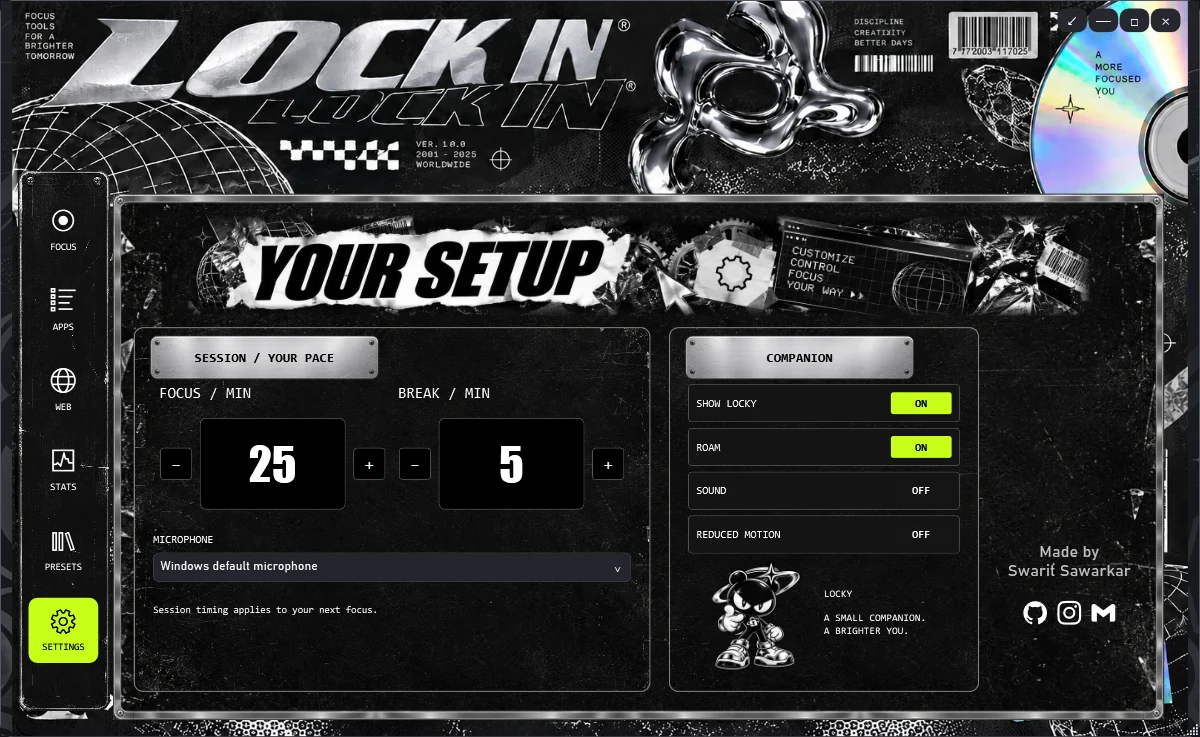
2. Pick your microphone
Open Settings and choose your input device. Windows default microphone is available, and your choice is saved. Physical microphone compatibility still needs testing across devices.
3. Speak your setup
Open Presets and choose Talk with Assistant to open its separate window. Tap the microphone to record a turn; the assistant speaks its reply. Review the suggested apps, websites and timing, then choose Use preset. No API key is needed. Use Save for manual edits you want to keep.
4. Connect your browser
For website restrictions, open Web > Connect browser and follow the Chrome or Edge companion instructions. Check connection status before starting. This setup is separate from voice access.
Stay in control
Voice requires internet and is subject to usage limits. Temporary 503 errors and timeouts occurred in testing; use manual presets when the service is unavailable. App restrictions minimise reviewed foreground apps rather than terminating them. Closing LOCK IN releases app restrictions; the browser extension can also be disabled.